RAG를 수행할 때 PDF, docx, hwp 등 다양한 데이터를 읽어와야할 수 있다.
ChatInstruct 논문을 리뷰 (링크)하면서 보니 Figure 자체를 이미지화해서 학습하는걸 알 수 있다.
이런 개념이면 LLaVA와 같은 로컬 VLLM을 사용하거나 multimodal LLM을 사용해서 이미지를 처리하는걸 생각할 수 있다.
이에 대해서 찾다보니 역시 다른 사람들이 해놓은게 있어서 참조하고자 한다.
특히 금융 분야에서 Figure와 Table을 모두 쓰고 있고 관련된 pdf 자료도 구하기 쉽기 때문에 이를 선택했다.
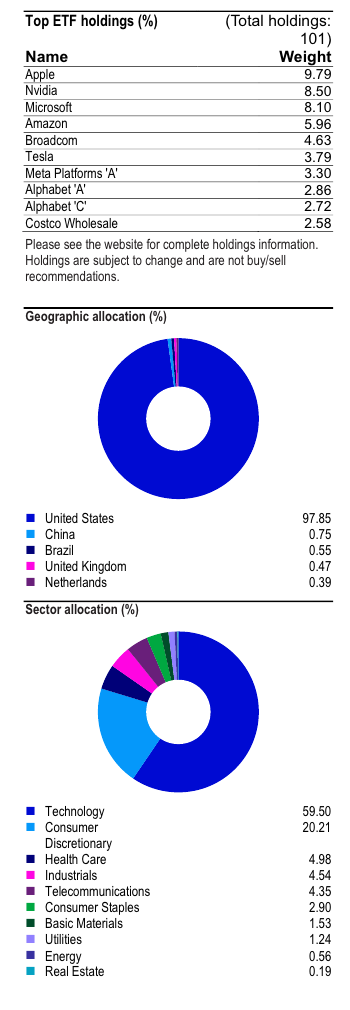
QQQ와 SPYETF 들에 대한 pdf 문서들로 부터 그림과 표를 제대로 추출할 수 있는지 실습하고자 한다.
QQQ는 나스닥을, SPY는 S&P500을추종하는 ETF들이다.
사용 문서는 다음과 같다.
SPY brochure:
QQQ Factsheet:
1. Figure
테디노트 Multimodal RAG 주피터 노트북 (링크)를 따라서 unstructured (깃허브 링크)를 활용해서 텍스트와 그림, 그리고 표를 뽑아낸다.
import os
from langchain_text_splitters import CharacterTextSplitter
from unstructured.partition.pdf import partition_pdf

# PDF에서 요소 추출


def extract_pdf_elements(path, fname):
    """
    PDF 파일에서 이미지, 테이블, 그리고 텍스트 조각을 추출합니다.
    path: 이미지(.jpg)를 저장할 파일 경로
    fname: 파일 이름
    """
    return partition_pdf(
        filename=os.path.join(path, fname),
        extract_images_in_pdf=True,  # PDF 내 이미지 추출 활성화
        infer_table_structure=True,  # 테이블 구조 추론 활성화
        chunking_strategy="by_title",  # 제목별로 텍스트 조각화
        max_characters=4000,  # 최대 문자 수
        new_after_n_chars=3800,  # 이 문자 수 이후에 새로운 조각 생성
        combine_text_under_n_chars=2000,  # 이 문자 수 이하의 텍스트는 결합
        image_output_dir_path=path,  # 이미지 출력 디렉토리 경로
    )


# 요소를 유형별로 분류


def categorize_elements(raw_pdf_elements):
    """
    PDF에서 추출된 요소를 테이블과 텍스트로 분류합니다.
    raw_pdf_elements: unstructured.documents.elements의 리스트
    """
    tables = []  # 테이블 저장 리스트
    texts = []  # 텍스트 저장 리스트
    for element in raw_pdf_elements:
        if "unstructured.documents.elements.Table" in str(type(element)):
            tables.append(str(element))  # 테이블 요소 추가
        elif "unstructured.documents.elements.CompositeElement" in str(type(element)):
            texts.append(str(element))  # 텍스트 요소 추가
    return texts, tables


# 파일 경로
fpath = os.path.join(curr_dir, 'document')
# 파일 이름
fname = "us-spy-brochure.pdf"

# 요소 추출
raw_pdf_elements = extract_pdf_elements(fpath, fname)

# 텍스트, 테이블 추출
texts, tables = categorize_elements(raw_pdf_elements)

# 선택사항: 텍스트에 대해 특정 토큰 크기 적용
text_splitter = CharacterTextSplitter.from_tiktoken_encoder(
    chunk_size=4000, chunk_overlap=0  # 텍스트를 4000 토큰 크기로 분할, 중복 없음
)
joined_texts = " ".join(texts)  # 텍스트 결합
texts_4k_token = text_splitter.split_text(joined_texts)  # 분할 실행
텍스트 추출 결과는 아래와 같다.
from pprint import pprint
pprint(texts_4k_token)
>> ['‘STATE STREET iets SPDR\n'
 '\n'
 'SPDR S&P 500 ETF Trust (SPY) Delivering Unrivaled Liquidity to Investors\n'
 '\n'
 'STATE STREET stvisors SPDR®\n'
 '\n'
 'Liquid, Cost-Effective Exposure to the World’s Largest Economy\n'
 '\n'
 'SPDR® S&P 500® ETF Trust (SPY), the original ETF innovation, was the spark '
 'that ignited the $9.9 trillion global ETF market you know today.1\n'
 '\n'
 'Since its launch in 1993, SPY has established itself as a premier choice for '
 'investors looking for cost-effective, highly liquid exposure to the '
 'well-known S&P 500® Index. As a result, the fund provides reliable access to '
 '500 of the largest publicly traded US firms,2 spanning all major sectors.\n'
 '\n'
 ... 중략
 'Before investing, consider the funds’ investment objectives, risks, charges '
 'and expenses. To obtain a prospectus or summary prospectus which contains '
 'this and other information, call 1-866-787-2257 or visit ssga.com. Read it '
 'carefully.\n'
 '\n'
 '© 2024 State Street Corporation. All Rights Reserved. '
 'ID2504453-5363256.4.1.AM.INST 1224 SPD003779 Exp. Date: 12/31/2025\n'
 '\n'
 'Not FDIC Insured No Bank Guarantee May Lose Value']
그림의 경우 아래와 같이 표가 잘 뽑혀져 나왔다.
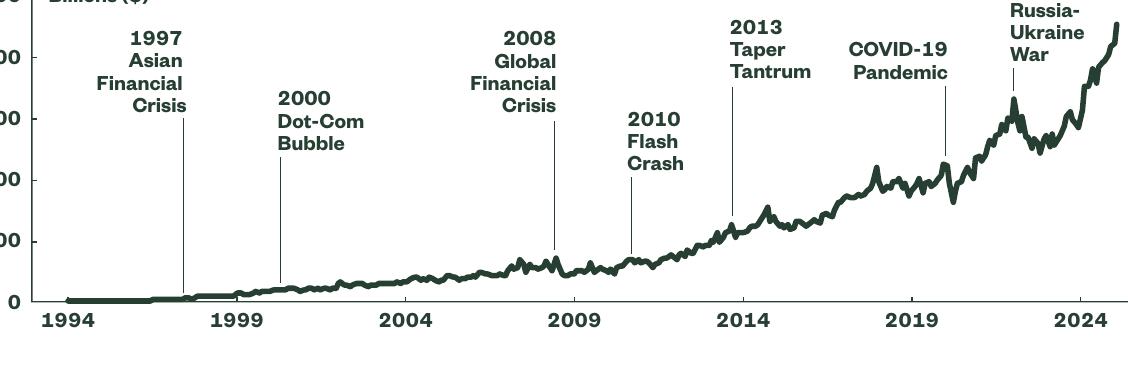
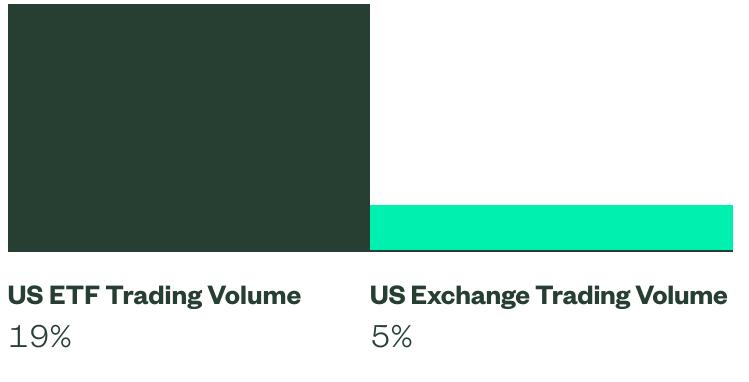
그런데 tables는 빈 리스트가 반환되었다.
unstructured에서 해결 되지 않는것 같아서 다른 라이브러리를 사용하기로 했다.
QQQ 파일에 대해서 다시 실행해봤는데, 역시나 tables는 빈 리스트를 반환했다.
# 파일 경로
fpath = os.path.join(curr_dir, 'document')
# 파일 이름
fname = "QQQ - Invesco QQQ ETF fact sheet.pdf"

# 요소 추출
raw_pdf_elements2 = extract_pdf_elements(fpath, fname)

# 텍스트, 테이블 추출
texts2, tables2 = categorize_elements(raw_pdf_elements2)

CropBox missing from /Page, defaulting to MediaBox
CropBox missing from /Page, defaulting to MediaBox
CropBox missing from /Page, defaulting to MediaBox
CropBox missing from /Page, defaulting to MediaBox
특이한 점은 CropBox missing from /Page, defaulting to MediaBox가 나타난다는 점이다.
대신 그림은 잘 추출되어 나온다.

그리고 여러가지 테이블 중에서 하나는 원래 다음과 같은 형식이다.

이 결과가 깔끔하게 나오진 않는데 텍스트에서 아래처럼 추출되어 나온다.
'\n'
 'Performance as at December 31, 2024\n'
 '\n'
 'Performance (%) ETF - NAV ETF - Market Price Underlying index Benchmark1 '
 'Benchmark2 YTD 25.58 25.56 25.88 28.64 23.81 1Y 25.58 25.56 25.88 28.64 '
 '23.81 3Y 9.46 9.41 9.71 7.27 8.01 5Y 19.94 19.98 20.18 16.57 13.86 Calendar '
 'year performance (%) ETF - NAV Underlying index Benchmark1 Benchmark2 2024 '
 '25.58 25.88 28.64 23.81 2023 54.73 55.13 43.42 25.96 2022 -32.51 -32.38 '
 '-33.10 -19.21 2021 27.25 27.51 21.39 25.66 2020 48.63 48.88 43.64 20.89 2019 '
 '39.12 39.46 35.23 31.02 2018 -0.13 0.04 -3.88 -5.24 18.28 18.28 18.53 15.09 '
 '12.55 2017 32.72 32.99 28.24 21.13 2016 7.01 7.27 7.50 12.74',
 '10Y Fund inception\n'
 '\n'
 '10.04\n'
 '\n'
정 안되면 일일이 파싱하거나 정규표현식을 사용하거나 해서 처리도 가능해보이긴한다.
그리고 pandas dataframe을 거쳐서 테이블 형식으로 저장하거나 markdown 형식으로 저장할 수 있을듯하다.
2. Table
pdfplumber, camelot, tabula-py 등 다양한 내역들이 있는데 누가 실험한 블로그 글 (링크)과 velog 글 (링크)이 있길래 pdfplumber와 camelot으로 선택했다. 위 방법들은 텍스트의 위치와 레이아웃을 활용한 패키지다.
각각의 Github 링크는 다음과 같다.
이번에는 딥러닝을 활용한 그림과 테이블의 인식이 가능한 OCR 모델들을 정리해본다.
일반적인 OCR 실험
1. pdfplumber
다른 블로그 (링크)를 참고해서 pdfplumber를 우선 시도해보았다.
import pdfplumber
import json


TABLE_SETTINGS = {
    "vertical_strategy": "lines",
    "horizontal_strategy": "lines",
    "explicit_vertical_lines": [],
    "explicit_horizontal_lines": [],
    "snap_tolerance": 3,
    "snap_x_tolerance": 2,
    "snap_y_tolerance": 2,
    "join_tolerance": 3,
    "join_x_tolerance": 3,
    "join_y_tolerance": 3,
    "edge_min_length": 3,
    "min_words_vertical": 3,
    "min_words_horizontal": 1,
    "intersection_tolerance": 3,
    "intersection_x_tolerance": 3,
    "intersection_y_tolerance": 3,
    "text_tolerance": 3,
    "text_x_tolerance": 3,
    "text_y_tolerance": 3,
}


def extract_data_from_pdf(pdf_path):
    with pdfplumber.open(pdf_path) as pdf:
        pages = pdf.pages
        index = 1
        for page in pages:
        	# 해당 페이지 내의 모든 텍스트를 찾아서 bounding box 추가 후 이미지로 저장
            im = page.to_image(resolution=150)
            im.draw_rects(page.extract_words())
            im.save(f"output_{index}.png", format="PNG")
            index += 1
            # 페이지 내의 테이블들을 모두 찾기
            tables = page.find_tables(table_settings=TABLE_SETTINGS)
            # 추출된 표들을 하나씩 출력하기
            for table in tables:
                print(table)

extract_data_from_pdf(os.path.join(fpath, fname))

CropBox missing from /Page, defaulting to MediaBox
CropBox missing from /Page, defaulting to MediaBox
CropBox missing from /Page, defaulting to MediaBox
CropBox missing from /Page, defaulting to MediaBox
역시나 테이블의 반환 결과는 아무것도 없었다.
그런데 여기서도 CropBox missing from /Page, defaulting to MediaBox 메시지가 나타나는걸 보니 unstructured가 pdfplumber를 사용하거나 무언가 핵심적인 부분에 대해서 같은 툴을 사용하는 것 같다.
2. camelot
카멜롯이 복잡한 구조의 표를 잘 추출한다는 블로그 글 (링크)를 봐서 시도해보았다.
import camelot

# 테이블 추출
tables = camelot.read_pdf(os.path.join(fpath, fname), pages="all", flavor="stream")  # 또는 "lattice"
for table in tables:
    print(table.df)  # DataFrame 형태로 출력
데이터프레임으로 출력한 결과는 아래와 같다.
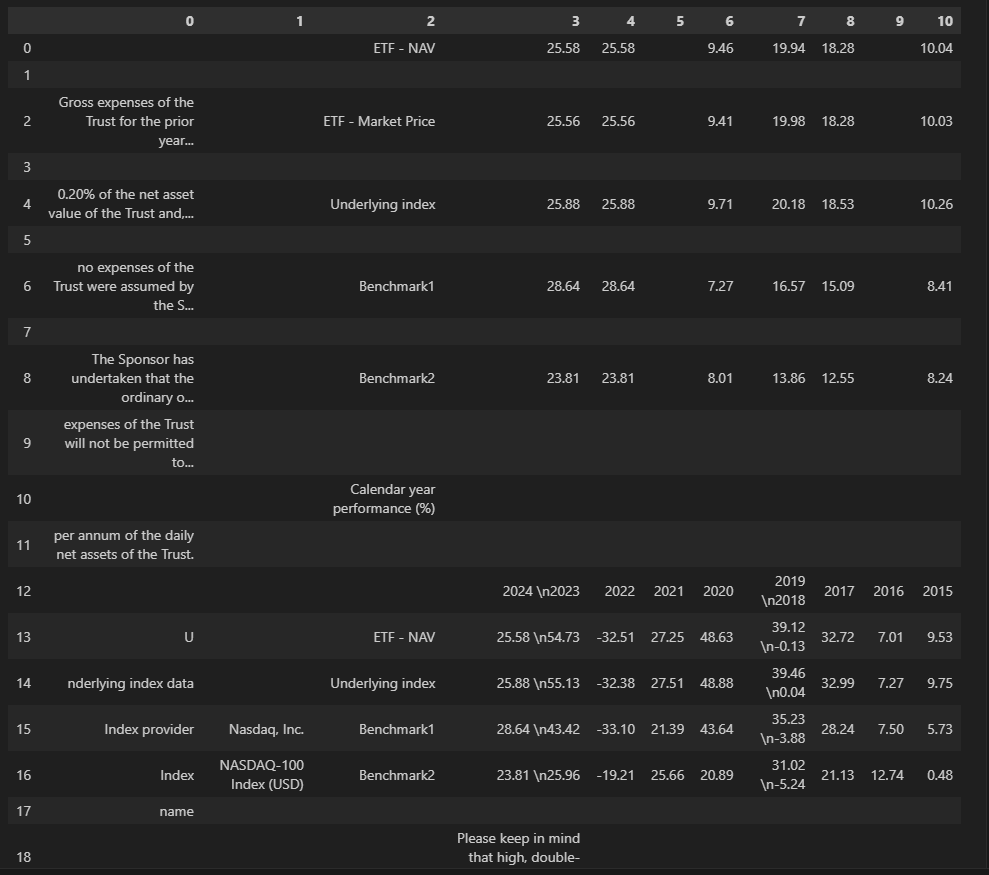
pdfplumber와 다르게 테이블 자체를 캐치는 하는데 제대로된 형태로 반환하지는 못한다.
딥러닝 베이스 실험
1. olmOCR
최신 모델인 olmOCR의 웹 페이지 (링크)에서 실험해볼수 있어서 시도해보았다.
Qwen2-VL에 기반한 모델이다.
우선 QQQ pdf를 실험해보았다.
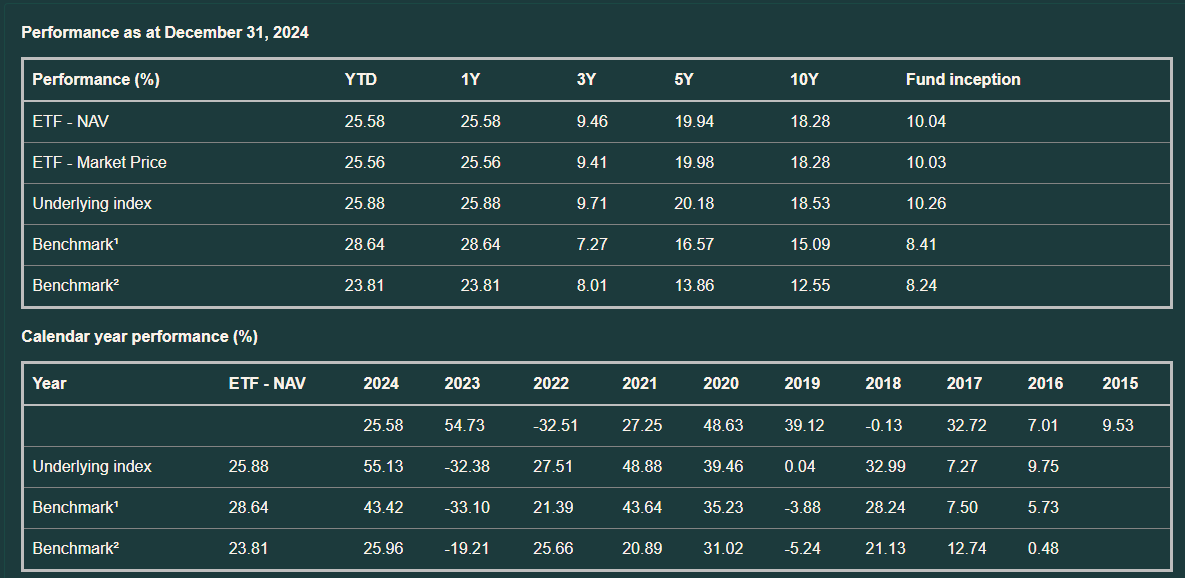
위와 같은 형식으로 표가 잘 뽑혀져 나오는걸 확인했다.
하지만 페이지 2에 나온 3개의 그림들은 제대로 파악하지 못했다.
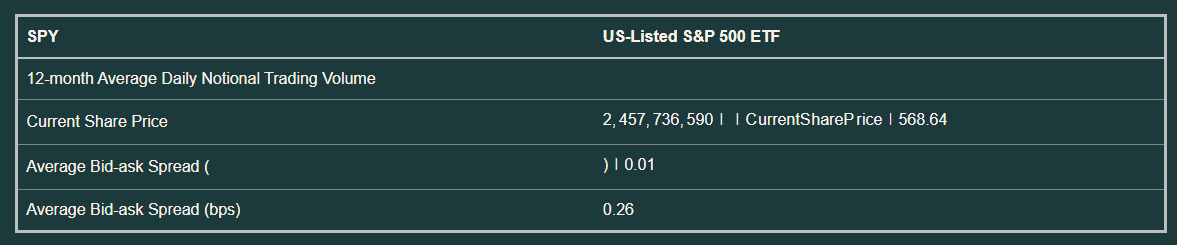
이번에는 SPY에 대해서 실험을 했는데 테이블에 적힌 숫자가 틀리게 나왔다.
2. Marker
Marker는 TesseractOCR와 Surya를 비롯해서 Gemini API와 Ollama를 통해서 OCR를 수행할 수 있는 파이프라인이다.
다른 옵션을 사용하지 않고 기본 OCR 엔진으로 PDF를 markdown으로 변환했다.
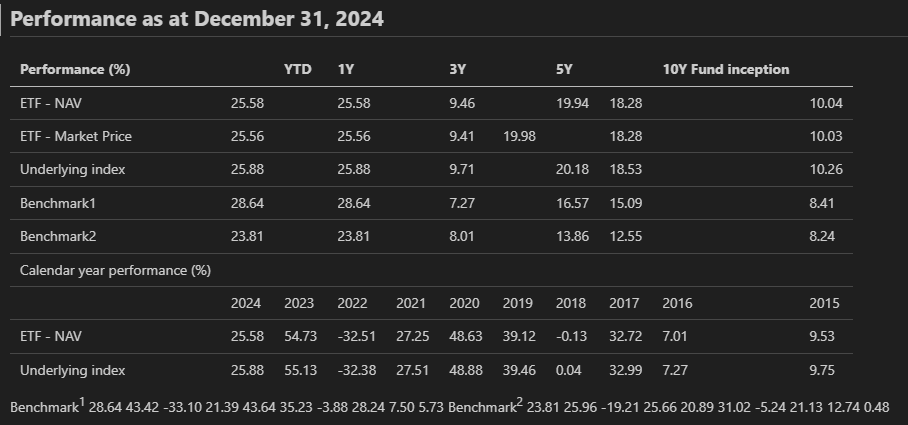
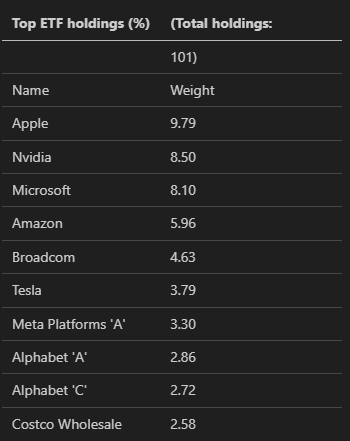
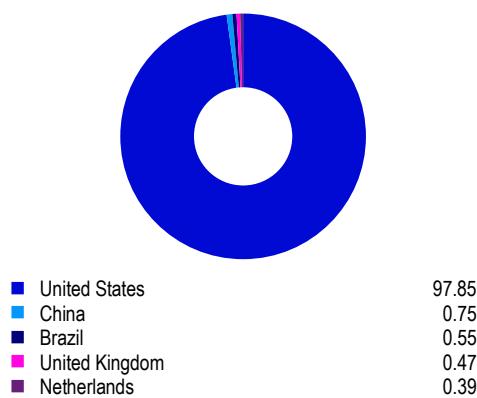
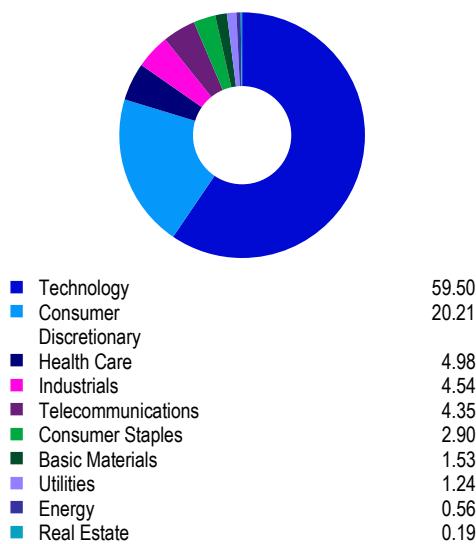
Local에 설치해서 한번 시험 삼아서 만들어봤는데 상당히 정확하다.
금융 관련 내용의 pdf를 제대로 다루기 위해서는 이런 저런 툴들을 많이 사용하거나, 후처리를 적극적으로 하거나, 금융 데이터에 대해서 파인튜닝을 하는 등 여러가지 추가 작업이 필요한듯 싶다.
실시간 정보가 필요해서 PDF에서의 정보 추출이 아니라, 인터렉티브 웹 형태 (링크)의 정보가 필요한 상황도 있을 수 있다.
이런 상황을 가정하고 크롤링이 가능한지 알아보고 시도 해보는 것도 나쁘지 않아 보인다.
참조:
Tesseract OCR (링크)
- 문자 패턴기반
- LSTM 기반
Easy OCR (링크)
- 딥러닝 기반 OCR
- CRAFT + (ResNet + LSTM + CTC)
PaddleOCR (링크)
- 딥러닝 기반 OCR
- MobileNetV3에 기반해서 수정한 모델을 사용
References:
https://github.com/teddylee777/langchain-kr/tree/main/12-RAG
https://cloudedjudgement.substack.com/p/clouded-judgement-111023
https://www.youtube.com/watch?v=U_f4-Br3_Y0
https://unstract.com/blog/extract-tables-from-pdf-python/
https://github.com/jsvine/pdfplumber
https://camelot-py.readthedocs.io/en/master/
https://github.com/camelot-dev/camelot
https://github.com/tabulapdf/tabula
https://neos518.tistory.com/265
https://github.com/Unstructured-IO/unstructured
https://velog.io/@tett_77/PDF-PDF%EC%97%90%EC%84%9C-%ED%91%9C-%EC%B6%94%EC%B6%9C%ED%95%98%EA%B8%B0
https://tech-diary.tistory.com/12
https://pypi.org/project/marker-pdf/0.2.4/
'AI Codes > LangChain & MCP & Agent' 카테고리의 다른 글
| Chainlit 리서치 및 튜토리얼 적용 결과 (3) | 2025.05.14 |
|---|---|
| LLM으로 테이블과 차트 생성 (2) | 2025.05.08 |
| 부서와 직급을 고려한 RAG 그리고 평가 (2) | 2025.05.02 |
| MCP 관련 문서와 영상 정리 (0) | 2025.04.28 |
| LangChain 관련 문서와 영상 정리 (0) | 2025.04.28 |


